G.E.A.R. — User Guide
Guitar Effects and Amp Rack. A guitar rig for iPad, iPhone and Mac: neural amp capture playback, impulse-response cabinets, 60+ effect blocks on a routable grid, and deep MIDI control from a footswitch.
Thank you for trying and hopefully purchasing my GEAR app. It's designed to be a Pro level solution for the gigging musician that's easy to use, portable and easy on the pocket.
I have personally been using this app from its early development stages at real gigs, tweaking and changing it as I went along. There are no fancy gear shots, just the nuts and bolts to get a great sound quickly with massive flexibility. The preset I supply with the paid version is essentially the preset I use on all my gigs.
The manual is a work in progress, it's pretty thorough already but I will keep updating it, adding pictures etc., so keep checking back.
I hope you enjoy GEAR, Nick.
Contents
- What GEAR is
- What you need
- Setting up audio
- Finding your way around
- The Grid
- The blocks
- Amp captures and cabinets
- Presets
- Scenes
- The Looper
- Metronome
- Tuner
- Performance Mode
- GEAR on iPhone
- MIDI control
- Syncing and backing up
- Recording your DI signal
- If something goes wrong
- Where your files live
1. What GEAR is
GEAR turns an iPad, iPhone or Mac into a complete guitar rig. Plug a guitar into an audio interface, and GEAR gives you:
- Amp sounds from neural captures. GEAR plays
.namfiles — captures of real amplifiers made with Neural Amp Modeler. You supply the captures; thousands are available free online, and you can make your own. - Cabinets from impulse responses. Load your own IR files, up to eight at once, each with its own level, pan, delay and filtering.
- 63 effect blocks — drives, fuzzes, compressors, modulation, delays, reverbs, pitch shifting, EQ, instrument simulators and more.
- A routable grid, not a fixed chain. Blocks go where you want, signals split and recombine, and parallel paths stay in time automatically.
- Deep MIDI control, so a footswitch drives everything you need on stage without touching the screen.
- A looper that records, overdubs, reverses and plays at half speed.
GEAR is designed to be played live. It keeps running in the background, it survives your interface being unplugged and plugged back in, and it never sleeps the screen mid-set.
2. What you need
A guitar and an audio interface. Any class-compliant USB interface works. GEAR asks the system what is connected rather than assuming a channel count, so moving between interfaces needs no reconfiguration.
One class of interface to avoid: the very cheap "guitar sound card" dongles sold for streaming. They typically mix the raw guitar straight into their own headphone jack with no way to turn it off, so you hear your dry guitar loudly over GEAR's sound, and their converters add latency of their own that no app setting can remove. A recording interface from a known maker, even an entry-level one, has neither problem. (Tested with one such dongle in September 2026: always-on direct sound, high latency, and the only controls were headphone volume buttons.)
Interfaces that have been used with GEAR on all three platforms include the Arturia MiniFuse 4, the Zoom AMS-24 and AMS-22, and the SSL 2+ (first generation). The hardware page at gear.helixprojects.co.uk has notes on each and on what to look for in one.
On iPad or iPhone you will need whatever adapter your device's port requires. Power the interface from its own supply if it has a socket for one. A phone has very little power to give: at a gig in September 2026 an iPhone 13 Pro could not keep a MiniFuse 4 alive from its own port, nor with a standard 1 A charger on the adapter; it took a pedalboard supply of a couple of amps on the adapter's charging socket. An interface with a DC input needs none of that, and drops off the bus for nobody.
Headphones or monitoring. GEAR outputs to whatever your interface offers.
Optional but recommended:
- A MIDI footswitch for hands-free control. GEAR is built around this.
- An expression pedal, if your MIDI controller has inputs for one. GEAR supports four. Note: there may be extra configuration needed on your MIDI controller to enable the expression pedal to work correctly.
- Headphones or speakers, so you can hear what GEAR is doing.
The free version and the full version
GEAR is free to download and stays free to play. The free version gives you one grid row of twelve blocks (Input and Output included), one amp capture, one cabinet loader, a set of drives, dynamics, delay, modulation, EQ and reverb, four Scenes and eight preset slots, at exactly the same audio quality as the full version.
Everything else stays visible with a padlock: the other blocks, Scenes 5 to 16, MIDI control, Performance Mode, the metronome, Mono Rig, the Global EQ, DI recording, sync, backup, and preset import and export. Tap any padlock (a Scene, a block in the Add menu, a padlocked square on the Grid) to see what it is and to unlock, or use Unlock Full Version… in the About section of the System tab.
One in-app purchase unlocks everything, on every device signed in with the same Apple Account. On a new device, Restore Purchase…, just below it on the System tab, brings it back.
3. Setting up audio
Open the Audio tab.
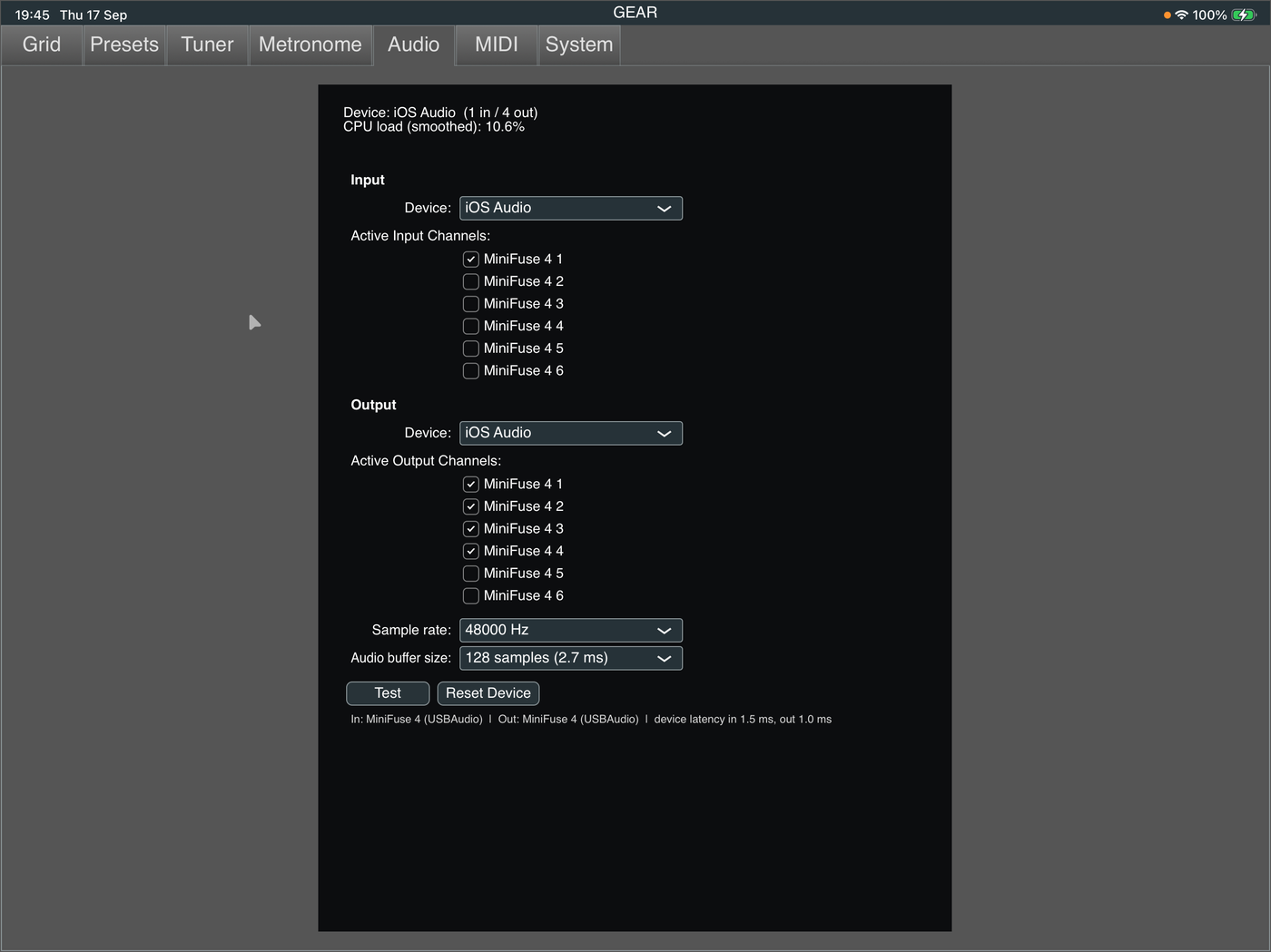
- Choose your device. On a Mac, pick your interface from the list. On iPad and iPhone, the system hands GEAR whatever is connected as iOS Audio. With nothing connected, iOS Audio is the iPad's or iPhone's own speaker — fine for the metronome. The built-in microphone is only ever used with wired headphones connected. Into the speaker it would feed back, so otherwise GEAR keeps the mic off, says so if you try to tick it, and closes it the moment the headphones are unplugged. Plug in an interface for the guitar.
What GEAR does when you plug an interface in. Its outputs come up first and its inputs a few seconds later, and GEAR waits for each: the first time it sees an interface it opens input 1 and outputs 1 and 2; after that it opens whatever you last chose for that model of interface on this tab. Unplug it mid-set and GEAR mutes, says so on the Grid's toolbar, keeps your settings, and carries on the moment it is back. To play through the speaker without it, choose iOS Audio here.
Plugging in while GEAR is in the background. iPadOS and iOS do not let an app start an input while it is behind another app. If you plug the interface in then, GEAR opens its input the moment you bring GEAR back to the front, or straight away if Performance Mode's floating window is open.
- Select input and output channels. Tick at least one input and one output. For stereo, select two outputs.
- Set the sample rate and buffer size. Try a sample rate of 48000 Hz. A smaller buffer means lower latency and more CPU load. Start at 128 or 256 samples and lower it only if you need to. If you hear clicks or glitches when playing, try making the buffer larger. If a device cannot run at the setting you chose (an iPhone's own speaker runs only at 48000 Hz, for instance), GEAR tries three times, then runs at what the device offers and says so in the Session Log. It tries your setting again when you change it or plug in something else.
- Check the input. Load a preset, click the Input block, play, and confirm the meter moves.
Getting your levels right
Signal level matters more with neural captures than with ordinary effects, because a capture responds to input level the way the real amplifier did — drive it harder and it breaks up harder.
Set the gain on your interface so playing hard reads healthy without clipping. Then use the Input block's own level control for fine adjustment inside GEAR.
Outputs that do not quite match
Some interfaces put out a little more on one output than its partner, so a stereo feed arrives at the desk, or in your in-ears, slightly off-centre. Output Trim, under Active Output Channels on the Audio tab, evens it out: up to ±6 dB per output, in 0.1 dB steps (double-click a trim to put it back to 0). Trims are stored against the interface, so another interface plugged in keeps its own. They are applied before each Output block's limiter, so with the limiter on, a boost cannot clip. The metronome is not trimmed.
If the difference changes as you turn the interface's volume knob, the knob is the cause, not the outputs: set the trim with the knob where you play.
The Global EQ: one EQ for the room
A boomy hall or a bright, bare room wants the same correction on every preset. The Global EQ (full version) is one Parametric EQ over every preset, on the outputs you choose. Turn it on in the System tab, under Mono Rig, and press Edit to shape it exactly as you would the Parametric EQ block, and to tick the outputs it applies to. Take 3 dB out at 200 Hz for the front-of-house pair, leave the in-ear feed alone, and switch it off again tomorrow without having touched a preset.
While it is on, the Grid shows GLOBAL EQ at the top (tap it to edit), and Performance Mode shows an EQ badge. It is applied after each Output block's level and before its limiter, it is never saved in a preset, and the metronome is not EQ'd.
If your interface is unplugged mid-session
GEAR notices and recovers on its own. Plug it back in and playing resumes — there is no need to restart.
4. Finding your way around
On iPad there are seven tabs:
| Tab | What it does |
|---|---|
| Grid | Build and edit your rig |
| Presets | Save, load and organise |
| Tuner | Chromatic tuner |
| Metronome | Click and tempo |
| Audio | Device, sample rate, buffer |
| MIDI | Controllers and mappings |
| System | Sync, backup, captures, settings |
On iPhone the layout is different — see section 14.
5. The Grid
The Grid is where your rig lives. Blocks sit on it, and connectors carry signal between them.
Adding a block
Tap an empty cell and choose Add Block. Blocks are grouped by category in the order they appear in section 6.
Connecting blocks
Signal flows along connectors you draw between blocks. A block can feed up to four destinations.
Every connector can carry mono or stereo, switchable per connector.
Input and Output blocks
- Input brings physical input channels of your interface into the grid.
- Output sends to physical output channels.
Each is bound to a specific channel, queried live from the hardware, and has its own level control.
The Output block picks its two channels by name — whatever your interface calls them on the Audio tab — and either can be set to Off. They do not have to be next to each other, so you can spread connectors out across the sockets however suits your rig.
Output Mode (and Input Mode, which works identically) then says what to do with them:
| Mode | Channels | What comes out |
|---|---|---|
| Mono | one | Left and right added together, on that one socket |
| Stereo | two | Left on one, right on the other |
| Dual-Mono | two | Left and right added together, on both sockets |
The mode follows the channels, so there is nothing contradictory to set: name one channel and it is Mono; name two and you choose Stereo or Dual-Mono. Dual-Mono puts the same signal on both sockets on purpose — grabbing the wrong cable in a rush mid-gig still works.
Each socket also has a Phase switch — Normal or Reverse — which flips that socket's signal upside down, exactly like the Ø button on a mixing desk. You will want it the day you run two amps at once and the room goes thin and hollow when both are on: the two paths are meeting out of phase, and reversing one socket puts the low end back. The switch follows the socket, so flipping Right flips whatever the Right channel socket is feeding even if the Left one is set to Off.
On an Input block the same three modes mean the mirror image: Mono reads one socket, Stereo reads two and keeps them apart, and Dual-Mono sums two sockets together — two mics on a cab, or a stereo source you want in mono.
Only the channels you have switched on in the Audio tab are offered, listed by the names your interface reports. If another Output block has already claimed a socket, the box turns red and reads In Use — that output would be silent, since a physical channel can only carry one block's signal.
Setting an output to Mono or Dual-Mono also changes how some effects behave, on purpose. Chorus, flanger, tremolo's auto-pan, the rotaries and ping-pong delays build their stereo image by running the two channels out of step with each other. Add those two channels together and they cancel — an auto-pan disappears completely, a chorus goes thin and hollow. So when everything an effect feeds is mono, GEAR switches it to a proper mono version of itself instead: one chorus voice rather than two fighting, an amplitude tremolo rather than a pan, a plain delay at the same time and feedback rather than a ping-pong.
The IR Loader is a special case. Blending two speaker IRs makes them comb against each other — darker, with a chorus-like phasing — and that happens in stereo too, wherever both land in the same channel. Panning them apart does not protect you. So when everything an IR Loader feeds is mono, it uses only the first loaded IR and fades the rest out. If you want the blend anyway, set that block's Mono Fold to Stereo.
Two things worth knowing:
- If a preset splits before the speaker IRs — a stereo feed to the desk and a mono feed to a stage amp — only the blocks that feed just the amp switch over. Anything still feeding the stereo desk output stays stereo, because its width is still going to be heard.
- Because the cancellation stops, a mono output usually gets a little louder when this kicks in. Check your level the first time.
Playing a gig with no stereo output at all? Turn on Mono Rig in the System tab. It treats every output as mono for the night, so you do not have to edit the Output blocks in each preset — useful at a festival where the desk feed simply is not plugged in. Your presets are not modified, and Performance Mode shows a blue MONO badge the whole time it is on.
Any single block can opt out: its Mono Fold control (under the extra parameters) is Auto by default, and can be pinned to Stereo or Mono.
Splitting and recombining: the Patch Bay
To run parallel paths — say a clean sound alongside a pitch-shifted one — use the Patch Bay pair:
- Patch Bay Send (P.B. Out) takes one signal in and sends it to up to three destinations.
- Patch Bay Return (P.B. In) brings up to three signals back into one.
Every port has its own level, and its own control over the stereo image — though the two blocks are asking different things:
- On the Send, that control is Source: which part of the incoming stereo signal this leg takes. Leave it on Both to send the whole signal down every leg, which is what you want when you are feeding two amps from one guitar. Turn it to L or R to split a stereo signal up — the left channel of a stereo amp into a reverb, say, and the right into a delay. The channel you pick is passed on at full level, so a mono signal is unaffected wherever you set this.
- On the Return, it is an ordinary Pan: where each returning leg sits in the finished stereo image. This is where you spread two amps left and right.
Each Return port also has a Phase switch (Normal / Reverse). The Return is where parallel legs meet, and two different amp-and-cab paths can arrive in opposite polarity — the sum then goes thin and hollow instead of bigger. Reversing one leg fixes it, exactly like the Ø button on a desk's input strip. The Send has no such switch on purpose: flipping a signal on its way out to legs that meet again later just moves the problem around.
The Send also has one input level shared across its outputs.
Both blocks are laid out as four sections, each in its own box with a level fader and a stereo LED meter showing what that section is actually carrying. On the Send those are the input and its three outputs; on the Return, the three inputs and the output. An unused port reads silence, so the meters also tell you at a glance which ports are wired up.
Parallel paths stay in time automatically. Every block reports how much delay it introduces, and where paths recombine GEAR delays the shorter ones to match. You do not have to think about this.
Editing
- Bypass a block to take it out of circuit.
- Rename and recolour blocks so a big rig stays readable.
- Copy and paste blocks, including between presets.
- Undo and redo covers structural edits — adding, deleting, moving, connecting, bypassing, renaming, recolouring and pasting.
Undo deliberately does not cover knob movements. Loading a preset clears the undo history, since that is a different document.
6. The blocks
67 blocks, including Input and Output. Names are GEAR's own — they describe character, not any particular manufacturer's product.
Blocks marked Sync can lock their rate to the global tempo as a note division (quarter, dotted eighth, triplet and so on) instead of a free rate.
Pitch (4)
Glitch Pitch · Pedal Pitcher · Poly Drop · Triple Threat
Pitch shifting, from single-note to polyphonic. Poly Drop handles chords; Pedal Pitcher is pedal-swept; Triple Threat runs three fixed octave voices at once, and holds together on a chord for the same reason Poly Drop does — the two now share an engine.
Glitch Pitch — Pitch Shifter — shifts everything you play by a fixed interval, chords included — there is no note tracking to get confused, so it holds up on a full chord rather than only on single notes. Shift sets the interval in semitones; Micro Shift detunes by cents on top, which is the setting worth knowing: leave Shift at 0, dial in a few cents and blend with Mix for a thickening that never reads as a transposition. Window trades smoothness against latency — Fast is tightest under the fingers, Smooth is cleanest on sustained chords.
Poly Drop's Window control trades latency against how low a chord it can hold. All three settings track a chord down to a low E; Short is the one to start with, at 12.5 ms, and there is nothing to gain by going longer unless you are in a very low tuning. Long costs 21.3 ms and buys headroom below a low E.
Window sets the length of the analysis grain, and a grain has to be at least one cycle of the lowest note you are playing. Settings that were too short for a low string were corrected in 2026-08-28's build; if you have a preset from before that which sounded like it stopped shifting on big low chords, that was why, and it is fixed.
Triple Threat — Polyphonic Octaver — runs three fixed voices at once — an octave down, two octaves down and an octave up — each with its own Volume and Pan, mixed against Original Volume. There is no interval to set and nothing to tune: the intervals are fixed, which is also why it holds together on a chord. Start with Original and one sub-octave, and use Pan to put a voice slightly off-centre rather than stacking everything down the middle.
Its Window control is not a window at all any more — it sets the block's response: Punchy follows your picking hardest, Balanced is the recommended middle, Smooth is calmest on sustained pads. Latency is a constant 11 ms whatever you choose — tighter than most dedicated octave pedals — and the block's character is deliberately clean and a little polished, like the glassy modern octaver units, rather than tape-y. Attacks bloom slightly behind the dry signal by design; Punchy minimises that, Smooth leans into it.
Triple Threat's engine was rebuilt twice in September 2026, ending with a completely different algorithm from any other block. Old presets load unchanged — every control keeps its meaning, and a preset saved with the old "Balanced"/"Medium" setting lands on Balanced here.
Simulators (3)
Air Con · Jingle Jangle · Sympathy Strings
Three blocks that make an electric guitar sound like another instrument. All three go at the front of a chain, before any drive; Air Con goes in place of the amp.
Air Con — Acoustic Simulator — turns an electric into a flat-top acoustic for the unplugged song in the middle of the set. Use it in place of an amp, with no amp or cab after it: straight to the PA, or into an IR Loader holding an acoustic IR with Body turned down. Type picks the box: Parlour (small and mid-forward), Standard, Jumbo (more low end) or Piezo (the quacky under-saddle stage sound). Pickup tells it whether it is hearing a single coil or a humbucker, which matters more than any knob. Body is the box resonating: up for bloom on the low strings, down if it booms. Top is the bright string zing. Shimmer adds a little movement up top, the way open strings ring against each other. Single coils and a light touch are the most convincing.
Jingle Jangle — 12-String Simulator — gives every note the partner string a twelve-string adds. On a real 12-string the low courses are strung an octave apart and the top ones in unison; Split chooses the note where that changes, anywhere from low E to the E two octaves up. It starts at B (the open B string), which is how a real 12-string is strung: below the split each note gets a partner an octave up, from the split upwards a partner in unison. Octave and Unison set the partners' levels, and Detune puts the unison partner a few cents out of tune, the slight mistuning that makes a 12-string shimmer. The partners arrive about 11 ms after the note you play, as the second string of a pair is struck a moment after the first; the note itself is not delayed. It runs on Triple Threat's engine, so it holds together on chords.
Sympathy Strings — Sitar Simulator — makes a guitar line sound like a sitar. Buzz is the sitar's curved bridge, which the string grazes on every cycle: a bright buzz on each note, the same at any playing level. Sweep sets how far and how slowly that buzz travels down through the harmonics after each pick, the instrument's signature "zhhoww" (at 0 it stays put). Sympathetic is the level of the unplayed strings that ring along underneath whenever you play a note they share; Key and Scale tune them. Root & 5th fits anything in the key, and Major, Minor and Phrygian (with the flattened second) colour it further. Tone is a final treble control. Set Key to the song's key and play single-note lines, as the real instrument is played: on chords the buzz turns muddy. The sympathetic strings ring on for a moment after you stop.
Wah (2)
Sobber · Auto Sobber
Sobber is a pedal-swept wah — assign its Position to an expression pedal. Auto Sobber sweeps from your playing dynamics instead.
Sobber offers two Voicings: Tears, a narrower sweep with a gentler resonance, and Rainbow, which sweeps wider and peaks harder.
Auto-Engage. The wah can bring itself in when you play above a threshold and drop out again after a set delay, so it needs no dedicated footswitch.
Dynamics (4)
76 Smoothy · Diamond Geezer · Restrainer · Squasher
Compression and limiting, three different circuit characters plus a limiter.
76 Smoothy — FET Compressor — is a FET-style pedal compressor, and it has no threshold control on purpose. Input drives the signal and the detector together, so turning it up makes the part louder and pushes it further into compression at the same time — that is how the hardware works and it is what makes the control feel the way it does. Ratio is a four-position switch rather than a sweep. Set the sound with Input and Ratio, bring the level back with Output, and use Mix to blend the uncompressed signal back in when you want the sustain without losing the pick attack.
Diamond Geezer is an optical compressor, and the reason it flatters strummed and clean parts is that its release moves with what you play: a quick peak recovers in about a tenth of a second, while a hard-strummed chord that pushed it 12 dB takes most of a second to let go. A fixed-release compressor cannot be made to do that by picking a better number. Comp is the whole gain-reduction control, the knee is soft and the ratio low, so there is no audible moment where it switches on. Tilt shades the tone brighter or darker as it works.
Restrainer — True-Peak Limiter — is a lookahead brickwall limiter — a safety net rather than a sound. It delays the audio a few milliseconds while it works out how much reduction the next few will need, so the gain is already down before the transient arrives instead of clipping first and reacting after. Ceiling is the level nothing gets past. True Peak also catches peaks that exist only between samples, which is what a converter or an encoder downstream actually sees. Put it last if you want a hard guarantee on your output.
Squasher — OTA Compressor — is the squash. Fixed, near-limiting ratio and no ratio control, because the pedal it belongs to never had one — a gentle setting would just be a worse 76 Smoothy. It differs from that block in a way you can hear: its detector averages rather than following peaks, so it responds to how loud a note is rather than to its very first transient, which is why it breathes instead of clamping. Sensitivity sets how hard it works. Reach for it for tight funk and country picking, and for the classic squeezed clean.
Overdrives (5)
Bit Of Bully · Country Road · Screamy · Screamy + · Tubey Gilly — Valve Overdrive —
Five different clipping characters. Which one suits depends less on how much gain you want than on what it does to your mids and how it treats the two halves of the waveform.
Bit Of Bully — Transparent Overdrive — is the transparent one, and what makes it transparent is not its clipping but its layout: an unclipped copy of your signal runs in parallel with the clipped one and the two are mixed, so some clean signal always survives however far up Gain goes. It stays articulate rather than becoming a distortion, which is what makes it work as an always-on thickener in front of an amp that is already driven. Treble brightens the clipped path.
Country Road — Natural Overdrive — is the full-range, lower-gain one. It has no mid-hump at all — no treble emphasis before the clipper, and a gentler curve — so it sounds more like an amp starting to break up than like a pedal. Cut is the control to know: it rolls the bass off progressively, and at 0 you get the full low end. Turn it up when the block is in front of a bassy amp and the low strings are getting loose.
Screamy — Mid-Focus Overdrive — is the classic three-knob mid-hump drive, and the hump is the point — fixed treble emphasis before the clipper, treble cut after it, which pushes the mids forward and thins the bass. That is exactly why it works as a boost into a high-gain amp: it tightens the low end and puts the guitar where the vocals are not. Its clipping is symmetrical, which keeps it cleaner and buzzier than Tubey Gilly.
Screamy + — Mid-Focus Overdrive (Mod) — is the same circuit with the one modification people actually make to it: the input-stage bass cut becomes switchable. Leave Bass Cut on Stock and it is Screamy; switch to Full Bass and the low end comes back, which turns a tightening boost into a fuller drive that can carry a part on its own. Bass Amount sets how much comes back.
Tubey Gilly is the only drive here that clips asymmetrically, and that is its whole character. A real valve stage limits fairly hard on one half of the waveform and compresses gently on the other, and that asymmetry — not just softness — is where the even-order harmonics people mean by "warm" come from. Every other drive in this app clips both halves the same way and sounds cleaner and more buzzing for it. Bias moves the asymmetry, from composed to sputtering; Lo and Hi are a tone pair rather than one knob.
Fuzz (3)
Baa Baa Sheep · Factoring Fuzz · Piper Fuzz
Kept separate from Overdrives because these are a genuinely different lineage — transistor fuzz rather than diode-and-op-amp overdrive — and they behave differently, not just louder. On all three, Volume runs from Off at the bottom of the fader to +12 dB at the top.
Baa Baa Sheep — Scooped Fuzz — is the thick, smooth, endlessly-sustaining one, built from two clipping stages in series rather than one: each saturates what the last already softened, and that is where the smoothness comes from. Its Tone control is a passive stack with a real mid-scoop, so at the centre position it is quieter and more hollow than at either extreme. That is not a fault to correct, it is the sound. Sustain is the gain.
Factoring Fuzz — Gated Fuzz — is the deliberately broken one. Gate is not a studio noise gate — it is fast and aggressive enough to chop a decaying note into stutters — and Comp biases the clipping stage off-centre, into the sputtering, almost-oscillating territory the pedal is known for. Set both high and it stops being a fuzz and becomes a spitting, rhythmic texture that only speaks when you dig in. Stab adds the instability.
Piper Fuzz — Hard Distortion — clips hard — a real clamp, not the gradually-saturating curve every overdrive here uses — so its harmonic content sits closer to a square wave: harsher and more aggressive, different in kind rather than in amount. Filter is a treble cut after the clipper and it does a lot of work; most of the usable range is in its lower half.
Amp (1)
NAM v2 — Amp Capture Player — plays a neural amp capture. See section 7.
CAB (4)
IR Loader 2 · IR Loader 4 · IR Loader 8 · Super 8 IR DI
The IR Loaders differ only in how many impulse responses they hold. All of them sum their slots into one output.
Super 8 IR DI is different: it sends each of its eight IRs to its own physical output channel for blending at a mixing desk, and has no grid output at all.
Modulation (14)
4th Dimension · Ding Dong · Eds Truck · Lecy Fog · NY Chorus · Purple Flan · Set To Stun · Split Shakes · The Shakes · Three Spins · Two Spinners · Wibbler · Wobbler · Ye Olde Chorus
Choruses, flangers, phasers, tremolos and rotary speakers. Most are Sync-capable.
4th Dimension — Stereo Dimension Chorus — is the chorus that does not sound like a chorus — width and depth without an obvious pitch wobble, which makes it the one to reach for on a clean part that has to stay solid. There is exactly one control, Mode, with four fixed settings of increasing intensity, because the unit it comes from had four buttons and nothing else.
Eds Truck — BBD Flanger — is the flanger with a Manual knob, and that knob is the reason to pick it: it places the sweep, Width sets how far the sweep travels around that spot, and at Width zero you get a parked, playable comb filter — the flanger equivalent of a half-cocked wah. The sweep glides evenly from whoosh to shimmer rather than lingering at one end, and Regen feeds the darkened wet signal back on itself, so pushing it builds a warm metallic bloom instead of a whistle. Stereo is a switch, off by default, because the hardware this voice comes from was mono.
Lecy Fog is a flanger, and the single thing that makes it a flanger rather than a chorus is Feedback: the delayed signal is fed back into its own delay line, and that resonance is what produces the sharply-tuned, metallic jet sweep. Its delay is much shorter than a chorus's and its sweep much wider. Feedback up for the dramatic version, down for something closer to a fast chorus.
NY Chorus — BBD Chorus — is aggressively minimal on purpose — a Rate knob and a two-position Depth switch, with the blend and the darkening both fixed by the circuit rather than offered as controls. If you want to shape a chorus, use Ye Olde Chorus. If you want to switch one on and have it be right, use this.
Purple Flan — Resonant Flanger — is the polite, even one of the three flangers: a triangle sweep that rises and falls at constant speed, placed by Manual and sized by Depth. What earns its keep is Resonance — the feedback loop drops the low end each time around, so turning it up builds a bright, hollow, glassy ring while the bottom of the note stays put, and it will sit right at the edge of whistling without booming. Reach for Eds Truck when the sweep itself is the event; reach for this when you want flange sitting politely on top of a part.
Set To Stun is a four-stage phaser, and it works by shifting phase rather than by filtering: the shifted copy is summed with your dry signal and the two partly cancel wherever they have drifted out of step. Those moving notches are what you hear, which is why a phaser sounds hollow rather than swept. The sweep runs 200 Hz to 2 kHz. Feedback sharpens the notches into something more vocal.
Split Shakes is a harmonic tremolo, and it is not a mode of Wibbler. The signal splits into a low and a high band and the two are modulated in opposite directions — as one fades the other rises — so instead of pulsing you get a wavering, phasey, almost vowel-like motion. Crossover sets where the split falls. Worth knowing: the level only holds steady if there is content in both bands, so on a low single note it will pulse like an ordinary tremolo.
The Shakes is pure pitch vibrato — always fully wet, with no mix control at all, and that absence is exactly what makes it a vibrato rather than a chorus. A chorus needs a steady dry signal to swirl against; this has none, so the whole note moves. Rise Time is its distinctive control: the vibrato ramps in gradually after you engage it, like a rotary speaker coming up to speed, rather than snapping to full depth.
Three Spins — Triple Rotary Speaker — is the smooth, hi-fi rotary — three independent, slightly detuned rotating voices at 120° from one another rather than one physical drum and horn. The result shimmers rather than chops, and it stays musical at speeds where a real cabinet would sound frantic. Use it for motion and width without the mechanical character, and Two Spinners when you want the machine itself.
Two Spinners — Rotary Speaker — models the real thing far more literally: the signal splits at around 800 Hz into a bass drum and a treble horn, counter-rotating at their own rates with the horn always faster. Each is treated as a moving source picked up by two microphones, so you get a level change as a rotor comes round to face you, a Doppler pitch shift as it swings toward and away, and — the part that makes it sound like it is talking rather than merely wobbling — the horn's treble dropping away as it points off to the side.
Speed has three positions — slow, fast and Brake, which stops the rotors the way the real cabinet's brake does: the horn comes to a halt first and the heavier drum keeps turning for a moment after it, and what you are left with is a plain speaker rather than a frozen wobble. Release it and it winds back up. Ramp Time is how long a change takes: the spin-up is half the sound, so do not set it to zero. The horn picks up speed sooner than the heavier bass drum and both coast down more slowly than they wind up, which is why the two are audibly out of step for a second or so after a switch. Depth sets how hard the cabinet is working — it moves the level swing, the pitch swing and the treble sweep together, because on a real cabinet those are not separate things. Width is where the two microphones sit: at 0 they are in the same place, which is a mono cabinet that still rotates; at 1 they are on opposite sides for the widest image. Drive adds the amp the cabinet was bolted to.
Wibbler — Tremolo & Auto-Pan — is amp-style tremolo, an oscillator pulsing your volume, with an Auto-Pan mode that alternates that pulse between left and right instead. Wave picks the shape. The combination worth knowing: Auto-Pan, a Square wave and full Depth hard-cuts the signal from side to side every half cycle — a genuine stutter, which falls out of those three settings rather than needing a mode of its own.
Wobbler — Photocell Vibe — is built from the same all-pass sweep as Set To Stun, but three things make it woozy where a phaser is precise: a lower, wider sweep (150 Hz to 1 kHz), an oscillator that is deliberately not quite symmetrical, and a Mode switch between chorus and vibrato voicings. Reach for it when you want a throb rather than a whoosh.
Ye Olde Chorus — Vintage Chorus — is the fully adjustable vintage stereo chorus — one oscillator sweeping a short delay, a darkened wet path, and the two channels' oscillators offset in phase to build a wide image from a mono guitar. Width is that offset. This is the chorus to dial in, rather than to switch on.
Ding Dong is the odd one out: a ring modulator, which multiplies your signal against a tuned oscillator and replaces every note with the sums and differences. Those almost never line up with the note you played, which is where the clanging, bell-like, faintly robotic voice comes from. Set Freq low and it stops being a pitch and becomes a hard, polarity-flipping chop instead — more aggressive than Wibbler's tremolo, and Sync-capable for exactly that use.
Delay (11)
Backspin · Bucket Delay · C90 Delay · Faithful Delay · Grain Store · Hopscotch · NY Delay · Polite Echo · Tub Delay · Twin Delay · Weed Delay
Digital, tape and analogue characters, plus reverse and ducking behaviours. All Sync-capable.
Backspin — Reverse Delay — plays your signal back backwards, in chunks as long as Time. Two reverse read heads run half a chunk apart, each fading in and out so one is always at full level while the other crosses its own join — which is what stops it clicking every few hundred milliseconds the way a single reversed buffer does. Short times give a stuttered warble, long ones whole reversed phrases.
Bucket Delay — Analog BBD Delay — is a bucket-brigade analogue delay, and its three controls are all it ever had. The dark, warm repeats are not a tone control you can defeat — they come from the fixed filtering the chip needs, plus a little saturation — and that fixed voicing is the sound. Its maximum time is genuinely short, a few hundred milliseconds, for the same reason. Reach for it for slapback and for repeats that sit behind the note rather than on it.
C90 Delay — Tape Echo — is a single continuous tape loop, and Age is its headline control: it does not just darken the sound, it makes each repeat more degraded than the one before, so a long trail decays in character as well as in level. Wow & Flutter adds the speed instability of a real transport. For the multi-head tape sound use Weed Delay; for a rotating magnetic drum, Tub Delay.
Faithful Delay — Digital Delay — is the clean one — no tape or analogue character, just accurate repeats. Tone sits in the feedback path, so long trails darken as they go instead of looping back unchanged forever. Ping Pong alternates each repeat hard left and right; Width offsets the two sides more subtly. This is the delay for when the part has to stay legible.
NY Delay — BBD Echo — shares Bucket Delay's bucket-brigade lineage plus one addition that is more interesting than it looks. Chorus is not a second effect stacked after the delay: on a real chip the delay time is a function of clock speed, so the same oscillator that creates the chorus also wobbles the delay time. There is one clock, and it works that way here too — which is why turning Chorus up makes the repeats themselves drift rather than just adding a swirl on top.
Polite Echo — Ducking Delay — gets out of the way while you play and swells back in when you stop, and it solves a problem every other delay here has: a long, high-feedback delay that sounds enormous in the gaps turns a busy part to porridge. An envelope follower on your dry signal pulls the repeats down, so they stay audible without ever competing with the note you are playing. Duck sets how far they drop, Release how quickly they return. The most useful delay in the set for live work.
Tub Delay — Multi-Head Drum Echo — is a magnetic-drum echo: a rotating drum with four fixed playback heads spaced around it, each giving one repeat at a multiple of the base time. Heads chooses how many are running — 1 is a single short slap, 4 gives taps at one, two, three and four times Time, each a little quieter than the last. All the repeats share one filter and one feedback path, because on the real machine they pass the same heads.
Twin Delay — Dual Stereo Delay — is genuinely two delays in one block, one per side, with independent time, sync, feedback and mix. That makes the classic stereo delay a direct setting rather than a workaround — a dotted eighth on the left against a quarter note on the right, which no amount of width or ping-pong on a single-time delay can produce. Tone is shared. Two different times sum to a legitimate mono multitap, which is why this is the one stereo delay the mono fold leaves alone.
Weed Delay — Multi-Head Tape Echo — is one tape loop read by three fixed heads, with a spring reverb in the same box. Heads is a real selector rather than a count — it picks specific combinations, any one, any pair, or all three. And because Time is tape speed on the real unit, changing it moves every active tap together at fixed ratios rather than independently. Echo Mix and Reverb Mix are separate, so you can have the spring without the echo.
Grain Store — Granular Delay — cuts the delay into short grains and scatters them in time, pitch and direction — stutters, shatters and reversed fragments of what you just played. Its Scatter control is the one that changes what the block is: at 0 every grain lands on the beat and it is an ordinary, slightly soft delay, so it is worth having in a preset even when you do not want the chaos.
Hopscotch — Arpeggio Delay — is a delay whose repeats climb. Each tap arrives one Time later and one Pitch interval higher, and each is placed at its own point across the stereo image — so one note turns into a rising figure that walks across the speakers. Set Pitch to 0 for a plain multi-tap delay.
Reverb (6)
Aura · Church · Freeze · Halo · Metal · Spring
Room, hall, plate, spring and shimmer.
Aura — Ambient Reverb — is the subtle one: a room rather than an effect, tuned to make the amp sound like it is somewhere physical instead of adding an obvious wash. Its early reflections stay slightly discrete rather than smearing into a smooth tail, and that is what reads as a real space. Keep Mix low — this block does its best work when you would not immediately name it.
Church — Hall Reverb — is the large space, and it is built denser than the others because a hall's tail has to be very dense before it stops sounding like a handful of separate repeats. Pre-Delay is what keeps the note itself clear of the wash: set it long enough that your attack lands before the reverb arrives.
Halo — Shimmer Reverb — feeds a pitch-shifted copy of the reverb's own output back into its input, so the tail climbs as it decays. Pitch sets the interval — an octave is the classic — and Shimmer how much of the shifted signal returns to the tank. Reverb Level and Pitch Level balance the plain tail against the rising one. High Shimmer with a long Decay builds indefinitely, which is the point of it.
Metal — Plate Reverb — is a plate: short, densely-spaced paths and strong diffusion, giving the bright, smooth, quickly-blooming wash a vibrating metal sheet produces. It flatters a lead line, because it thickens the note without pushing it back the way a hall does.
Spring — Spring Reverb — is a spring tank, and it is deliberately sparse — two recirculating paths rather than six, and only light diffusion, because a real tank is two or three individual springs and not a dense network. It is band-limited at both ends for the same reason. Twang is the control that matters: it is the boing a real tank gives up when the amp gets knocked, and it is most of the character.
Freeze — Freeze & Sustain — is not a reverb. It grabs whatever is playing the moment you engage it and holds it indefinitely as a pad, while your live playing carries straight on over the top — a bowed chord or an infinite organ note, from a guitar, with both hands free. The block's Bypass is the freeze switch — un-bypass it to grab what you just played, bypass it to let go — so assign Bypass to a footswitch, and the block lights up only while it is holding a pad. Because it is a block, where you put it decides what it holds: after the amp it holds the chord with all its grit; before a delay, the delay keeps repeating the held chord. Attack swells the pad in rather than dropping it into the mix, and Release fades it out when you let go.
EQ (3)
Parametric EQ · Seven Band · Tone Stack (EQ)
Three EQs that are different instruments rather than different amounts of the same one.
Parametric EQ is the surgical option: seven fully adjustable bands, each with its own frequency, gain and Q, plus Low Cut and High Cut either side. Bands 1 and 7 switch between bell and shelf shapes. Use it when you already know what you are looking for — a specific resonance to notch out, a specific range to lift.
Seven Band is a graphic EQ with the frequencies chosen for you: 100, 200, 400 and 800 Hz, then 1.6, 3.2 and 6.4 kHz, a straight octave ladder. The parametric asks you to pick a frequency before you can do anything; this asks only "more or less, here?". The sliders deliberately have no adjustable frequencies, because that is the entire point of a graphic EQ on a pedalboard.
Tone Stack (EQ) — 4-Band Tone Stack — is the familiar amp voicing: Bass and Treble as shelves, Mid as a peak, and Presence as a second shelf above Treble. Unlike a real passive tone stack the controls do not interact — turning Bass does not move where Treble sits — so it behaves predictably, which makes it the easiest of the three for broad shaping.
Utility (5)
Volume · Loudness Meter · Patch Bay Send (P.B. Out) · Patch Bay Return (P.B. In) · Looper
Volume is a level and pan control, and its most common use is as a volume pedal: assign Level to one of the four expression pedal slots, or MIDI-learn it, and a physical pedal becomes a swell control. Where you place it decides what it does — before a drive it changes how hard that drive is hit, after it only changes how loud you are.
Loudness Meter measures rather than changes. It is completely transparent: it only ever reads the signal, never alters it. It exists because peak level and perceived loudness are genuinely different things — a heavily driven sound and a clean one can share an identical peak and still be obviously different in volume, which is what makes level-matching presets by eye so unreliable. Add it while you are balancing a rig, then bypass or remove it before a show.
The Patch Bay pair is covered in section 5, and the Looper has section 10 to itself.
7. Amp captures and cabinets
Loading a capture
Add a NAM v2 block and use Load Capture to pick a .nam file.
The i button beside it shows what is inside the file — architecture, size and other metadata. This matters because bigger captures cost more CPU: if you are running close to the limit, a smaller one of the same amp may sound near-identical for a fraction of the load.
Loading cabinets
Add an IR Loader and load a .wav, .aiff, .flac or .ogg file into a slot. GEAR detects mono and true-stereo IRs per file.
Each slot has its own:
- Level and Pan
- High Cut and Low Cut
- Delay — for phase alignment between mic positions
- Phase — flips that IR's polarity (Normal / Reverse). A capture chain can flip an IR without the file giving any sign of it, and you only find out when it meets another IR — or another amp — and the sound goes thin. Reverse one of them and the low end comes back. The Super 8 IR DI has the same switch on each of its sections, marked Ø.
Slots sum together, so an empty slot simply contributes nothing. With only one slot loaded, Pan is greyed out and the output is mono-summed, since panning one cabinet against silence means nothing.
There is no dry/wet control: cabinets are always fully wet, and the block's Output trim sets level like every other block.
Where these files live
Captures and IRs are stored in GEAR's own folders and referenced by filename, not by full path — so a preset made on a Mac still finds its capture on an iPad. Files travel with presets when you sync.
8. Presets
A preset is your whole rig: every block, every parameter, every connector, plus up to 16 Scenes.
Banks and slots
Presets are stored at bank 1–16, slot 1–128 — 2048 addresses. The Presets tab shows this as B1/P3 and so on.
Slots stop at 128 deliberately. A MIDI CC only reaches 128 values, so a preset in a higher slot could never be selected from a footswitch.
Saving and loading
Save writes your changes back to the preset you have loaded. Save As makes a new preset from the sound you have, in the first empty slot (the bank you are looking at first), and never replaces an existing one. To replace a preset with your current sound, Save As, then copy the new preset over the old one. Presets carry a name of up to 64 characters; a name too long for its row scrolls once you select it. Double-tap any preset row to load it — or select it and press the green Load button. Rename edits the selected preset's name in place (clicking the name of an already-selected row does the same). A load takes you to the Grid, except on the iPhone's Perform screen, which a load never leaves, so a footswitch preset change mid-song keeps it on screen.
Loading a preset rebuilds the grid, so there is a brief gap in sound. This is intended: Scenes are the tool for changing sound within a song, and they have no gap at all.
GEAR reopens the preset you last loaded when it starts. A freshly installed copy starts with an empty grid, and an empty grid is silent: the tuner and the footswitch still work, but there is nothing between input and output until you load a preset. If you ever hear nothing, check the preset name on the Perform screen or the Grid before anything else.
When does a preset need saving?
The header shows an orange \* when the loaded preset has unsaved changes — and that means changes you made on the screen: editing the grid, moving a control by hand, changing MIDI mappings, updating a Scene.
Playing is never a change. Switching Scenes, moving an expression pedal, or turning any control from your MIDI controller will not mark the preset as needing a save — the controller operates the rig, it doesn't edit it. You can gig all night on one preset without the app ever asking anything of you.
Tidying the library: reorder, copy, cut, paste, move
Every occupied row has a grip (three short lines) at its right-hand end. Press on the grip and the row lifts and follows your finger; drop it on another row and the preset takes that slot, the rows in between shuffling along by one. The row you are over is outlined in green as you go. Anywhere else on a row selects it, and on the iPad a finger dragged down the rows scrolls the list.
Dragging to another bank. Carry the row over the bank column: the bank under it lights up green, and after a moment the list switches to that bank with the row still under your finger. Drop it on the slot you want. That moves the preset there, leaving its old slot empty; if the slot is taken you are asked before it is overwritten. On the Mac, hold ⌘ while dragging to copy instead of move — a green + appears on the row — in any bank including the one you started in.
The row above the library buttons holds Copy, Cut, Paste and Move to Bank…. Select one preset, or several (shift-click or command-click on the Mac, tap in turn on the iPad), then:
- Copy or Cut, switch to any bank if you like, select the slot to start at and Paste. Several presets paste into a run of slots from there; you are asked before anything is overwritten.
- Move to Bank… drops the selection into the first free slots of the bank you choose. Nothing is ever overwritten; a bank without room says so.
The same four are on each row's right-click menu (long-press on the iPad), and on the Mac ⌘C, ⌘X and ⌘V work while the list has focus. Clear the search box first: these all act on real slot numbers, which a filtered list does not show.
Starting where you left off. GEAR opens on whichever preset was loaded when it last quit, so a restart at a gig comes back sounding right. If you would rather start with an empty grid, untick Reload last preset at launch on the System tab. Start on, just below it, chooses the tab GEAR opens on (Grid, Audio, Presets and so on). Choose Audio if you move between interfaces, so the sample rate and buffer are the first thing you see.
Your edits are never lost by a load
If you load a preset — from the screen or from a MIDI program change — while the current one has unsaved changes, those changes are kept automatically. No dialog, no interruption: the load happens instantly, the status line notes that your edits were kept, and an amber Restore button appears beside it. One tap brings everything back, still associated with the preset it belonged to, ready to save. This survives closing the app, so edits displaced mid-gig are still there the morning after.
Favourite Blocks: one sound across many presets
If eight presets share the same amp, a tweak to that amp used to mean eight edits. A Favourite is a named copy of one block's settings, kept once and shared: link the amp in each preset to it, and every linked preset takes the favourite's settings the moment it loads.
Select a block and look at the ☆ Favourite button in its title bar. Every block has one. An Input or Output favourite carries its channels as well as its levels: a preset that needs different channels sets them, and keeps them. On the Grid, a ★ in a block's bottom-left corner means it is linked to a favourite, the way the dot in the bottom-right means it has Scene controls.
- Save as Favourite… names this block's current settings as a favourite and links the block to it.
- Link to Favourite lists the favourites of this block's type. Linking applies the favourite to the block straight away.
- Once linked, the button shows ★ and the favourite's name. A ● after the name means this block has drifted from the favourite: you have changed something here since.
Edits stay in the preset until you say otherwise. Turn a knob on a linked block and only this preset changes. When the new setting is the one you want everywhere, choose Update Favourite from this block; every other linked preset picks it up on its next load, apart from any setting that preset has changed for itself. Revert this block to the Favourite goes the other way. Unlink keeps the settings and makes it an ordinary block again.
Scenes win. A control you have assigned to Scenes in a preset stays that preset's own: the favourite never overwrites it, and Update Favourite never pushes it. So the amp's gain can come from the favourite while its level is a Scene control that differs per song. Bypass, the block's name, colour and footswitch tag are never part of a favourite either — they are about how the block sits in this preset.
A favourite carries its capture or IR with it. Favourites back up with your library and sync to the shared folder alongside your presets. Restoring all presets from a backup brings the favourites back too; restoring just one preset leaves them as they are.
The Favourites tab lists every favourite with its block type and how many presets link to it, so you know before you delete one. Select a favourite to Rename or Delete it, or Add to Grid to drop a new block onto the Grid already linked and already sounding like it. The Grid's own add-block menu (long-press an empty cell) has the same list under Favourites.
9. Scenes
A Scene is a stored setting of chosen parameters within one preset. Each preset has up to 16, and switching between them is instant — nothing is rebuilt, so there is no dropout and no lost reverb tail.
This is how you change sound mid-song: verse, chorus, solo.
Choosing what a Scene remembers
Scenes are opt-in per parameter. Every control has a MIDI/SCN button beside it: right-click (or long-press) it and choose Assign to Scenes. Only assigned parameters are captured.
Bypass is itself an assignable parameter, so a Scene can switch blocks in and out.
This is deliberate. If Scenes captured everything, every Scene would be a near-copy of the whole rig, and changing one shared setting would mean editing all sixteen.
Working with Scenes
- Rename — right-click a Scene.
- Copy and paste — within a preset or between presets.
- Colour — right-click to set.
- Update — writes the current sound into the selected Scene.
- Right-clicking (or long-pressing) a Scene selects it as well as opening its menu, so what you change next goes into that Scene.
- Reset — right-click a Scene and choose Reset Scene... Its name goes back to its number, its colour and switch tags are cleared, and its settings become a copy of Scene 1's. Resetting Scene 1 itself clears only its name, colour and tags.
Manual or Auto
- Manual — a Scene changes only when you press Update.
- Auto — the current Scene continuously follows your tweaks.
Auto is set globally, and can be overridden per preset.
Switching Scenes live
Reserved CC 31 selects Scenes. See section 15.
Matching Scene levels
Level-matching a bright clean against a compressed high-gain sound by ear is guesswork — so GEAR measures it instead. Record a short DI take (the Record the raw DI switch, or CC 27): play the riff you want the scenes judged on, ten seconds is plenty. Then right-click the Scene the others should match and choose Match Other Scenes to This Level... GEAR replays that same take through every Scene offline — your live sound is never interrupted — measures each one's loudness over the whole phrase, and shows you the differences. Apply writes the correction into each Output block's per-Scene Output Level, so the match is part of the preset and survives saving. Equal loudness is not quite equal presence, so expect to nudge by ear afterwards — from a matched starting point, not from guesswork.
The solo trick: Snapshot and return (CC 24)
Scenes recall what you stored. But mid-song you tweak things — a chorus flipped on just for this song, a delay pushed a little further — and the moment you jump to your solo Scene, those tweaks are gone.
Reserved CC 24 is the way back. Press (value 64–127): GEAR captures every knob and bypass on the grid exactly as it stands. Release (value 0–63): everything returns to the captured state — manual tweaks included — and the Scene you were on when you pressed is the current Scene again, so the Scenes bar and Performance Mode show it. Its stored values are not reapplied: your tweaks win. On one latching footswitch you can build the whole solo gesture: press sends the capture then your Scene change and boosts; release sends the restore, and you are back on the sound you were actually playing, not the one you saved last week.
The capture lives only until you take another or load a preset, is never saved, and never marks the preset as edited — it is a performance gesture, not an edit.
10. The Looper
The Looper is a block, not a tab, and that is a musical decision: where it sits in your chain matters. Before the amp, your loop is re-amped by whatever you switch to. After it, the loop keeps the tone it was played with.
Add it from Utility.
Recording
There is one record button, and what it does depends only on whether a loop already exists.
- No loop → press Record and it starts a new one.
- A loop exists → press Record and it adds a layer, round and round.
The first pass sets the loop's length — either the Bars you chose, or until the buffer runs out if Bars is Free. It then carries straight on overdubbing until you press Play (which stops recording and keeps playing, with no rewind) or Stop.
Layers always start at the top
Press Record or Overdub Once during playback and it arms, starting when the playhead comes back round. The button flashes while armed. Press at the top and it starts at once; any other transport press cancels it.
This is what makes Overdub Once mean one clean pass rather than one pass offset by wherever your foot happened to land.
The transport
| Control | What it does |
|---|---|
| Stop | Stops. The loop is kept. |
| Record | New loop, or a new layer over the existing one |
| Play | Plays; ends a recording without rewinding |
| Overdub Once | Exactly one pass, then back to playing |
| Undo | Removes the most recent layer |
| Erase | Deletes the loop. Only works when stopped. |
| Reverse | Plays the loop backwards |
| Half Speed | Halves playback and recording speed |
Erase is refused unless you are stopped. Mid-song, reaching for Erase is nearly always a mis-hit for Stop or Undo, and it is the one button you cannot take back.
Undo is one level deep. There is no redo and no second undo.
Reverse and Half Speed
Both are modifiers rather than transport states — you can be playing and reversed and at half speed.
- Reverse affects playback only. Your input arrives forwards in time, so there is nothing at the record head to reverse.
- Half Speed affects both. Record at half speed and play back at normal for an octave up — which playback-only half speed can never do.
When Bars is not Free and the loop is sounding, both land on the next beat rather than instantly, so the change lands musically.
Timing
Set on the Looper block, so they save with the preset:
- Bars — Free, 1, 2, 3, 4, 8, 12, 16, 20, 24, 32, 48, 64, 96 or 128
- Beats — beats per bar
- Count In Rec / Count In Play — whether to count in, per action
- Click Out — where the click goes
- Quantise — start the first recording on a bar line
A bar count that will not fit the memory budget is clamped, and the panel shows the real target. 128 bars at 60 BPM is over eight minutes.
Count-in
Count-ins work whether or not the click is switched on. With the click off you get the counting-down bar on screen and a flashing Record button instead of an audible count.
The count-in length is set on the Metronome, in beats — it is global, because one rig has one count-in feel.
The click controls are duplicated here
Everything about the click is on the Looper too, and the two surfaces stay in sync — change it in either place and both show the truth. You never have to leave the Looper to switch a click on.
The Looper's own Click switch is not the Metronome's Start/Stop button shown twice. It means "click while this loop is running". The Metronome's own switch means "click now". Either one makes the click audible.
Memory
The Looper reserves its memory when you add it, whether or not you record. Set the budget on the System tab:
| Setting | At 48 kHz | At 96 kHz |
|---|---|---|
| 45 seconds | 33 MB | 66 MB |
| 2 minutes (default) | 88 MB | 176 MB |
| 5 minutes | 220 MB | 440 MB |
| 10 minutes | 440 MB | 879 MB |
Two buffers are held — the loop and the undo layer — which is why the cost is what it is. Choose deliberately on a phone.
Footswitch control
Reserved CC 25, where the value is the action — see section 15.
Reserved CC 20 puts the Looper on screen: 64–127 goes to the Grid and opens the Looper's properties, so you can watch the loop while you drive it from the floor; 0–63 closes them again (and on iPhone goes back to the Perform screen). It only closes the panel if the panel is showing the Looper, so it never shuts a block you are in the middle of editing, and it does nothing on a preset with no Looper.
11. Metronome
Tempo, click and count-in.
- Tempo — 20 to 300 BPM, typed or tapped.
- Start/Stop Click — immediate, and independent of any Looper.
- Count In Beats — how long a count-in lasts, in beats.
- Click level and routing.
The tempo set here feeds every Sync-capable block, so a delay set to dotted eighths follows it everywhere.
Tap Tempo is on the grid, the Perform screen, and reserved CC 30.
12. Tuner
A chromatic tuner. Opening the Tuner tab engages it; reserved CC 29 engages it from a footswitch.
Notes for the editor: confirm the mute behaviour when engaged, and whether the reference pitch is adjustable.
13. Performance Mode
Performance Mode is a stripped-back readout of everything you need at a glance while playing: preset and Scene names, tempo with a flashing beat, tuner, output meters, the blocks you chose to show, and the Looper's position.
On iPad it floats over other apps. Open it and it becomes a small always-on-top window, so you can run a chords or lyrics app underneath and still see your rig. Reserved CC 28 opens and closes it. The iPhone can float the same window: the Perf Mode button on its Grid opens it, and so does CC 28, though on the phone the Perform tab is usually the better view.
The control stays disabled for a moment after you open the app while the system prepares the window. This is a requirement of the way iOS floating windows work, not a bug.
Choosing what appears. Each block has a Perf Mode setting; tick it and that block gets a chip in the readout.
Switch tags — a pedalboard mirror for controllers with no screen. Give a block a switch tag (the Sw button beside Use block name in Perf Mode in its properties — "A", "3", "B2", whatever is printed on the footswitch that drives it) and it appears in the MIDI Controller View (below): a grid in the order of the switches on your pedal, lit when the block is active and dimmed when bypassed. Each switch reads tag – name: for a block, the name follows the same rule as its chip (typed chip text, else the block name if Use block name is ticked, else the block's glyph). Scenes work the same way — right-click a Scene and choose Perf Mode Switch Tags... — and read, say, 1A – Clean, with the current Scene lit. Look down at the iPad and you see exactly what your feet see, plus which ones are on. The square Performance Mode window never shows the switches; its block chain still lists a tagged block like any other.
Pages, like the pedal. The Sw button (and the Scene menu item) opens a small panel with three rows, Page 1 to Page 3, one tag each, because a controller such as the MC8 has pages: the same eight switches mean something else once you page it. Tag a block on page 2 only and it is a switch only while the pedal is on page 2. The button always shows all three pages — SW: A/-/-, SW: A/B/- — so you can see at a glance what is set where, and tags apply as you type them. Reserved CC 23 tells GEAR which page the pedal is on: send 0, 1 or 2 for pages 1, 2 or 3, 127 for next page and 126 for previous page, both wrapping round, so a single footswitch programmed to 127 walks 1 → 2 → 3 → 1. Any other value is ignored. Program the same switch on your controller to change its own page and send this CC, and the two stay in step. Loading a preset puts GEAR back on page 1, which is where a controller lands after a bank change too; if yours does not, have its preset change send CC 23 as well. Reloading it with CC 22 keeps the page. When more than one page is in use, a thin bar along the top of the MIDI Controller View shows which of the three pages you are on.
On the iPhone the switches are buttons. Tap a cell and it does what the footswitch does, on the press: a block toggles, a Scene is recalled, and a cell that stacks several Scenes steps to the next one each tap and wraps. Tapping the current Scene recalls it again, which resets anything you have toggled since. This is a phone thing only — the iPad's floating window is a video and cannot take touches.
No interface, no sound, and it says so. If GEAR has muted the output because the audio interface has gone (a cable out, or the interface losing power), Performance Mode turns red and reads NO INTERFACE, on the iPad's floating window, the MIDI Controller View and the iPhone's Perform screen alike, until the interface is back. Any other safety mute reads OUTPUT MUTED with its reason. The fix is almost always the cable or the interface's power supply, not the app.
Choosing what the window shows. On the iPad and iPhone the System tab has a Performance Mode section of its own: light theme, show tempo (the beat dot and BPM figure), show tuner, show output level meters, show active block chain and MIDI Controller View. Everything but the last is on by default. (The Mac has no floating window yet, so it has no such section.) Meters appear for every output unless you tick Show in Perf Mode on particular Output blocks, in which case only those are shown. As you come to trust the rig, turn off what you no longer glance at.
MIDI Controller View reshapes the floating window into a wide, shallow strip — roughly six times wider than it is tall — that mirrors your controller and nothing else: your tagged blocks and Scenes together as a grid of four across and up to two rows, in switch order, the shape of an eight-switch pedal: the first four along the bottom and the next four above them, as on the pedal itself, so switch C is always the third cell of the bottom row. Give several things the same tag — three Scenes that one footswitch cycles through, say — and they share one cell, which shows whichever is active, or the lowest-numbered one dimmed when none is. Every cell is the same size and the type is as big as the longest label allows. There is no tempo line, Scene bar, preset name, meters or block chain in this shape. Two things take the strip over temporarily: engage the tuner (the Tuner tab, or the reserved CC 29 footswitch) and the strip becomes a wide tuner, the note on the left and the cents bar across the rest, until you disengage (this ignores the show tuner switch, which is about the square window); tap a tempo, from any Tap button or the reserved CC 30, and the strip shows the beat dot blinking beside the BPM for two seconds after your last tap, then goes back to the pedal grid. The tuner wins if both apply. An open window is asked to change shape as soon as you flip it; if it does not, close and reopen Performance Mode.
Reserved CC 21 switches the view from a footswitch: 0 for the normal window, 1 for the MIDI Controller View. It works with the window open or closed, and it does not change the System tab's switch — it lasts until you touch that switch or quit GEAR, and the next launch starts from the switch again.
The Looper is an exception, and only when it is doing something. Idle, it obeys the tick like everything else. Once it is counting in, recording, playing, overdubbing, or stopped holding a loop, its chip appears whether or not you ticked it — and shows the transport rather than a static icon, with extra chips for Reverse and Half Speed while those are active.
14. GEAR on iPhone
The iPhone build is a player, not a second editor. It is the redundant twin of your main rig: the same presets, the same sounds, driven from the same footswitch — but you build rigs on an iPad.
The tabs are Perform · Grid · Presets · Favourites · Views · Tuner · Metronome · Audio · MIDI · System.
The Perform screen
Performance Mode's readout is the home screen, full size and always on. GEAR opens on it unless Start on on the System tab names another tab. Below it:
- Scene — opens a tower of all 16 Scenes down the left of the screen. Tap one to select it; tap anywhere else to close without changing.
- Tap — tap tempo, and it flashes on the beat.
What is different
- After a restart the phone reloads the last preset it had, like the iPad. Until it does, or if none was ever loaded, the grid is empty and the phone is silent even though the tuner works: load one from the Presets tab or a footswitch.
- The Grid is for looking and fixing, not building: it shows four columns at a time, the toolbar drops Tap and the tempo readout (the Perform tab has Tap), and a block's controls stack into two or three rows. Everything works; it is simply small.
- Pinch to zoom the grid, on the phone and the iPad alike, and drag empty grid with one finger to scroll it. Below about 120 points across, a block shows only its glyph, no name: at that size it is a marker for finding your way, and the name is on the panel once you tap it.
- No DI recording. The phone is the backup rig, not where you capture takes, so the feature is off entirely — including its footswitch CC.
- Scenes are a tower, not a bar, because sixteen buttons across a phone would be unreadable. On the Perform screen the Scene button opens it. On the Grid, the button under the preset line names the playing Scene ("Scene 3: Verse"). Tap it for the tower, and long-press a Scene in the tower for its menu (Rename, Copy, Paste, Reset and the rest). Update Scene sits beside it, and Perf Mode moves up to the right of the preset line.
- A preset name too long for its space scrolls: on the Grid's preset line, and on the Presets tab for the preset you have selected.
Getting your rig onto the phone
Set up the sync folder on the System tab and sync. Presets, captures and IRs all come across. See section 16.
15. MIDI control
GEAR is built to be controlled from a footswitch when you are performing.
Connecting a controller
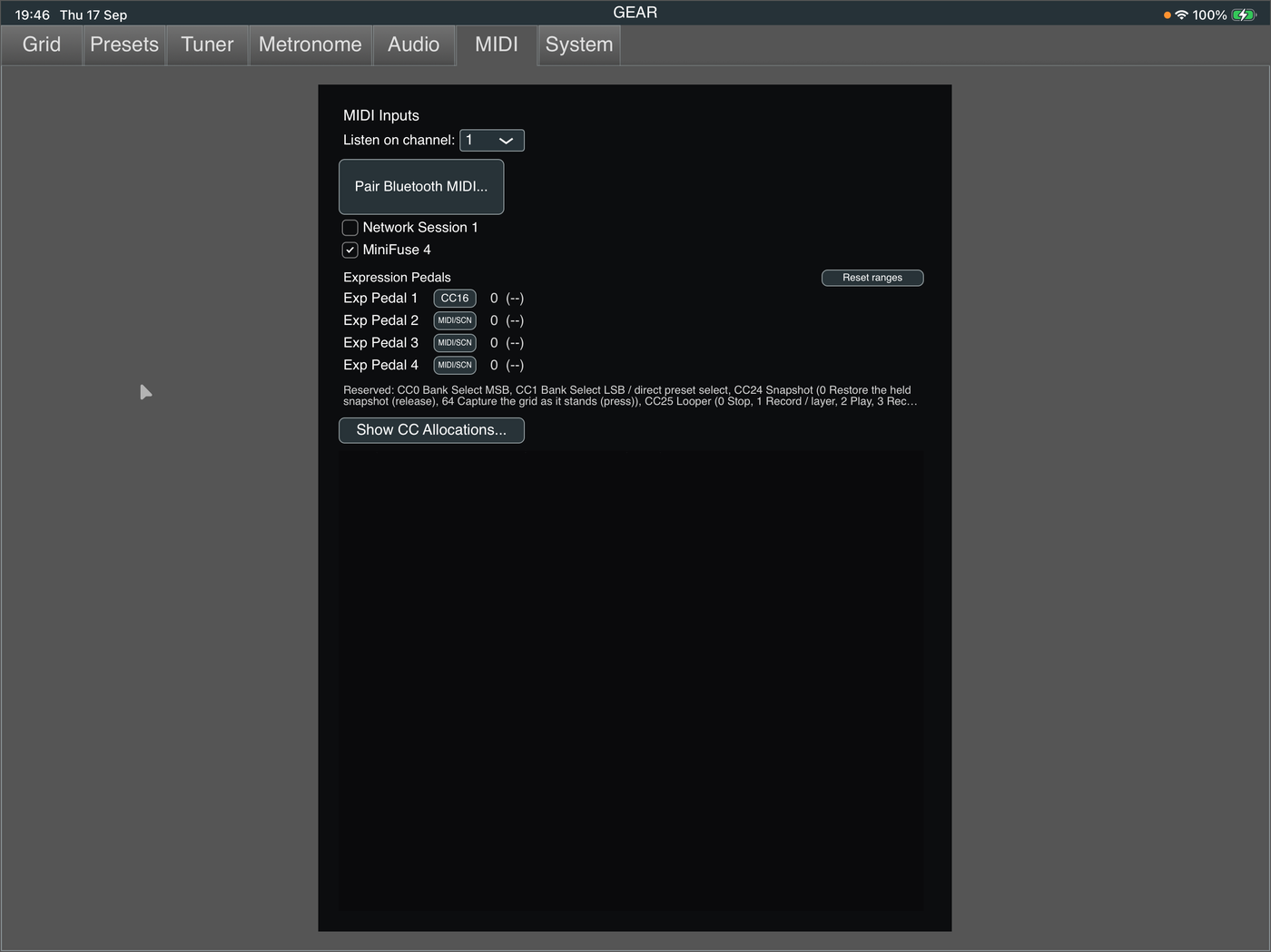
Wired — USB, an interface's DIN ports, or a virtual port. It appears in the MIDI tab's device list; switch it on.
Bluetooth — GEAR connects Bluetooth controllers itself. Pair once through the system sheet, and after that GEAR reconnects on its own, on launch and mid-session, including after the controller has been switched off and on again.
A Bluetooth controller has no on/off toggle in the device list. It gets its own "Connected directly" line instead.
More than one controller can be connected at once, including two Bluetooth devices, and GEAR on more than one machine can share the same controller — which is what lets a backup rig follow your main one.
Make sure you select the controller, which will be listed below the 'Pair Bluetooth MIDI' button.
Expression pedals: here you link the CC you assigned on your MIDI controller to the Expression Pedal reference in GEAR.
The 'Show CC Allocations' button shows all system-reserved CCs and any CCs you have used in the current preset. I found this helpful!
The lower section of the tab shows MIDI commands flowing through the system to help with any diagnostics.
Choosing presets
Program Change selects a preset by its own MIDI number. For numbers above 128, send Bank Select first: CC 0 for MSB, CC 1 for LSB.
Or address the storage directly, which most people find simpler:
- CC 0 sets the current bank (its raw value, 0–127)
- CC 1 selects and immediately loads a preset in that bank
No Program Change needed.
Mapping controls
Almost any parameter can be driven by a CC. Right-click a control:
- Assign CC Number… — type the number
- MIDI Learn… — arm it, then move the control on your controller
Expression pedals — four shared slots. Assign any parameter to follow one continuously.
One global input channel. GEAR listens on one MIDI channel, set on the MIDI tab; individual mappings do not choose their own.
Reserved CCs
These fourteen are fixed, global, and cannot be assigned to anything else, so they can never collide with your own mappings. The CC Allocations dialog lists them alongside your preset's own.
| CC | What it does |
|---|---|
| 0 | Bank Select MSB |
| 1 | Bank Select LSB / direct preset select |
| 20 | Looper properties — 64–127 show, 0–63 hide (section 10) |
| 21 | Performance Mode view — 0 the normal window, 1 the MIDI Controller View; other values are ignored (section 13) |
| 22 | Reload the loaded preset — any value. Everything goes back to how the preset was saved, and the switch page stays where it is. It does nothing while the preset has unsaved edits: save them first |
| 23 | Switch page — 0, 1, 2 select pages 1, 2, 3; 126 previous, 127 next, wrapping (section 13) |
| 24 | Snapshot — press captures the grid and the current Scene, release restores both (section 9) |
| 25 | Looper — the value is the action, see below |
| 26 | Metronome on/off |
| 27 | DI Recording on/off (ignored on iPhone) |
| 28 | Performance Mode open/close |
| 29 | Tuner engage/disengage |
| 30 | Tap Tempo |
| 31 | Scene Select |
Except where noted, these follow the same convention as bypass: 0–63 is off, 64–127 is on.
The Looper CC
CC 25 is different — the value itself chooses the action, so one CC and nine footswitches drive the whole Looper:
| Value | Action |
|---|---|
| 0 | Stop |
| 1 | Record / add a layer |
| 2 | Play |
| 3 | Record / add a layer |
| 4 | Erase (only when stopped) |
| 5 | Reverse |
| 6 | Half Speed |
| 7 | Overdub Once |
| 8 | Undo |
Values 9–127 do nothing at all. That is deliberate: a switch left on a generic on/off default sends 127, and doing nothing is much better than silently toggling Half Speed.
Set each footswitch to send one exact value on CC 25.
16. Syncing and backing up
These are different things, and the difference matters.
Sync — keeping devices in step
Nominate a shared folder — an iCloud Drive folder works well — on the System tab, on each device. Syncing pushes and pulls presets slot by slot, newest wins. Captures and IRs travel with the presets that use them, and so do bank names: the most recent rename wins.
This is how you build a rig on a Mac and play it on an iPad, or get your presets onto the iPhone.
After every sync GEAR shows the newest edit in the shared folder. If that is older than a change you have just made on another device, iCloud has not delivered it to this one yet — sync again in a minute. Each device gets iCloud's updates on its own schedule, so one can be a few minutes behind another.
Deleting a preset leaves a marker behind, so a delete is not undone by an older copy on another device.
Backup — going back in time
Sync merges, so it cannot protect you from yourself. Delete or damage a preset and sync spreads that change everywhere.
Backups are separate: point-in-time snapshots that do not merge.
- Automatic — a snapshot of your library and settings at every launch. The last five are kept, plus the last one from each of the 14 most recent days you opened GEAR.
- On demand — full backups from the System tab, with your captures and IRs. Choose Backup Folder... sends them somewhere off the device, such as iCloud Drive, so they survive losing it.
Restore / Manage... lists every snapshot, with how many presets each holds. Restore everything, all presets, just the settings, or one preset. Restoring takes a safety snapshot first and refuses an unreadable one, so it is never a one-way door.
Sending one preset to someone
Export... on the Presets tab packages the preset on the Grid, as it is now, with the captures and IRs it uses, as one .gearpack file. On iPad and iPhone it goes to GEAR's folder in the Files app (On My iPad or On My iPhone, then GEAR), where you can share it from; on a Mac, to your Downloads folder.
To bring one in, put the .gearpack in that same folder and press Import.... GEAR loads the newest pack there onto the Grid, captures and IRs included, but does not save it: save it to a slot to keep it.
17. Recording your DI signal
GEAR can record the raw, untouched signal from every Input block on your grid — before any processing — as separate mono WAV files, for re-amping in a DAW later.
Switch it on from the System tab, or reserved CC 27.
The Input blocks on your grid are the setting. There is no channel picker, so there is nothing to configure wrongly and no chance of recording silence from an unused socket.
Recording stops automatically at 50 GB, or half your free space, whichever is lower.
There is no playback. These files are for taking elsewhere: on iPad they are in GEAR's folder in the Files app, under Recordings; on a Mac, in Music → GEAR Recordings.
Not available on iPhone.
If the app is killed mid-recording, the audio is on disk but the file header will under-report its length. The recording is repairable, not lost.
18. If something goes wrong
No sound. Check the Audio tab shows your interface; check an Input block exists on the grid and is on the right channel; check an Output block exists; check nothing is bypassed or muted by the tuner.
Crackling or dropouts. Raise the buffer size. Watch the CPU meter — big neural captures are the usual cost. Try a smaller capture of the same amp: the i button shows which you have.
The interface was unplugged and now nothing works. Plug it back in; GEAR should recover on its own. If not, the Audio tab will show what the system currently reports.
My footswitch does nothing. Check the MIDI tab lists your controller and it is switched on. Check the global input channel matches what your controller sends. Check you have not assigned a CC that is reserved — the CC Allocations dialog shows both lists together.
A Bluetooth controller will not reconnect. GEAR reconnects on its own, including after a power cycle. If it does not, re-pair once through the system sheet.
A preset lost some blocks. Check the Session Log on the System tab, which records what did not load and why — usually a capture or IR file that is not on this device.
Scenes are not recalling something. That parameter is probably not assigned. Right-click its MIDI/SCN button and check Assign to Scenes.
The Session Log
The System tab has a Session Log, readable on the device with no computer attached. It records the quiet failures — a preset that dropped a block, a capture that did not resolve, a sync error, a controller that vanished. It is the first place to look after anything odd at a gig.
19. Where your files live
On a Mac:
| What | Where |
|---|---|
| Preset library | ~/Library/GEAR/Presets/library.gearlibrary |
| Captures | ~/Library/GEAR/Captures/ |
| IRs | ~/Library/GEAR/IRs/ |
| Backups | ~/Library/GEAR/Backups/ |
| Session log | ~/Library/Logs/GEAR/ |
| Settings | ~/Library/Application Support/GEAR/GEAR.settings |
Note this is
~/Library, not~/Library/Application Support— worth knowing if you ever need to recover a file by hand.
On iPad and iPhone these all live inside the app's own storage. Use sync or a backup to get them off the device. Exported presets and DI recordings are the exception: they go to GEAR's folder in the Files app.